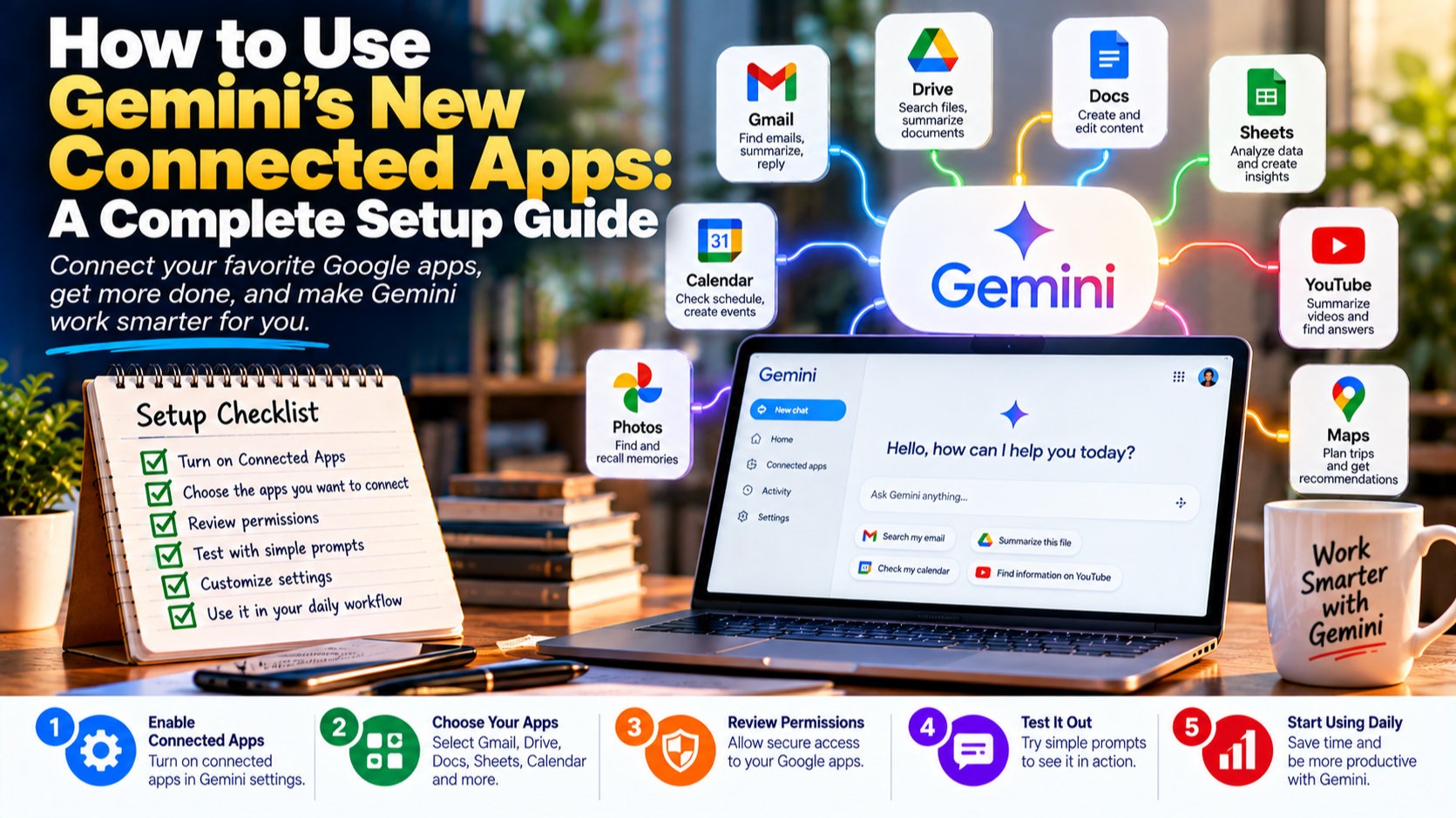
Google started rolling out 14 new third-party Connected Apps inside Gemini on September 23, 2026, letting the assistant work directly inside tools like Airtable, Linear, monday.com, Adobe, Webflow, and even Experian and apartments.com. It's the biggest single expansion of Gemini's Connected Apps feature since it launched, and it turns Gemini from a chatbot you copy answers out of into something that can actually open a project board, draft a design brief, or pull up your credit file on command.
There's a catch worth knowing before you get excited: ten of the fourteen new apps are currently limited to US accounts. If you're in the UK, Canada, Australia, New Zealand, or Western Europe, you'll only see three of the new additions — Adobe, monday.com, and Wispr AI — with the rest rolling out to other regions later and on no announced date. This guide walks through exactly what changed, who can use what today, and how to set up and get real value out of Connected Apps whether you're one of the lucky ones with the full list or working with the smaller international rollout.
What's Actually New in This Update
Connected Apps isn't a brand-new feature — Gemini has let users link services like Gmail, Google Photos, and YouTube for a while as part of what Google calls Personal Intelligence. What's new is the jump to outside, non-Google software. The 14 additions split into three categories Google itself uses: productivity, creativity, and lifestyle. On the productivity side you get Airtable, Linear, monday.com, PandaDoc, Wispr AI, and Zoho — tools built for managing projects, databases, contracts, and dictated notes. The creativity group covers Adobe, Picsart, Squarespace, and Webflow, aimed at design work and building or editing websites. The lifestyle category is the odd one out: apartments.com, Experian, Peloton, and SeatGeek, which let Gemini reference your apartment search, credit tracking, workout history, or event tickets when you ask it something related.
Once an app is connected, Gemini can read from it and, depending on the integration, take action in it without you switching tabs. Ask it to summarize open tickets in Linear, pull your Experian credit score trend, or draft new copy directly into a Webflow page, and it pulls live data instead of guessing from training knowledge that might be months out of date.
Who Can Use What: The Real Availability Breakdown
This is the part most coverage of the announcement skipped past, and it matters if you're outside the US. All 14 apps require you to be signed in, at least 18 years old, and set to English — no exceptions reported yet. Beyond that, availability splits sharply by region.
| App | Category | Availability |
|---|---|---|
| Adobe | Creativity | US and international |
| monday.com | Productivity | US and international |
| Wispr AI | Productivity | US and international |
| Airtable | Productivity | US only (for now) |
| Linear | Productivity | US only (for now) |
| PandaDoc | Productivity | US only (for now) |
| Zoho | Productivity | US only (for now) |
| Picsart | Creativity | US only (for now) |
| Squarespace | Creativity | US only (for now) |
| Webflow | Creativity | US only (for now) |
| apartments.com | Lifestyle | US only (for now) |
| Experian | Lifestyle | US only (for now) |
| Peloton | Lifestyle | US only (for now) |
| SeatGeek | Lifestyle | US only (for now) |
If you're running a small business or side hustle from the UK, Canada, Australia, or anywhere in Western Europe, Adobe and monday.com alone are worth setting up — those two cover a lot of ground between design work and project management. Everyone else should still go through the setup once, because Google has a track record of expanding Connected Apps regionally within a few months of a US-first launch, and you don't want to be starting from zero when Airtable or Linear shows up in your market.
Step-by-Step: How to Connect Your First App
Setup takes about two minutes once you know where to look. Google buried the entry point inside a newer menu, so even people who've used Gemini daily sometimes can't find it on the first try.
- Go to gemini.google.com on a computer, or open the Gemini app, and make sure you're signed into the Google account you want to use.
- Turn on Keep Activity in your Google account settings if it isn't already on — Connected Apps won't load on web, iOS, or smartwatches without it, and this trips up more people than anything else in the setup.
- Click Settings at the bottom of the Gemini interface, then look for Personal Intelligence. If you don't see Connected Apps directly, it's nested one level inside this menu.
- Scroll the list of available apps and toggle on whichever ones you actually use. Only connect apps you expect to reference regularly — each one you add is a new source of personal or business data Gemini can draw on.
- Go back to a normal Gemini conversation and type @ followed by the app's name to pull it into a specific question, or just ask naturally; Gemini will use a connected app automatically when it's relevant.
- Check back every so often, since Google is adding apps and regions on a rolling basis — what isn't available to you today may show up without any announcement.
How to Get the Most Out of Each Category
Connecting an app and actually getting useful output from it are two different skills. Here's how to approach each of the three groups.
Productivity: Treat Gemini Like a Project Manager, Not a Search Bar
With Linear or Airtable connected, the highest-value move is asking Gemini to synthesize across records rather than fetch a single one. A question like which open tickets in Linear are overdue and assigned to me will get far more useful output than asking it to show a single ticket by number. With Wispr AI, which handles voice dictation, try dictating a rough note and asking Gemini to turn it directly into a structured task inside monday.com or Zoho in the same exchange, skipping the manual copy-paste step entirely.
Creativity: Use It for the First Draft, Not the Final One
Adobe and Webflow integrations are strongest for generating a starting point — a layout idea, a first pass at copy, a color palette suggestion — that you then refine by hand. Don't ask Gemini to publish a finished Squarespace or Webflow page without reviewing it first; design and brand consistency still need a human pass, and automated publishing mistakes are hard to walk back once a site is live.
Lifestyle: Mind What You're Handing Over
Connecting Experian means Gemini can see your credit data when you ask about it, which is genuinely convenient for quick checks but is also sensitive financial information living inside a chat history. Only connect apps like this if you're comfortable with that data being part of your Gemini activity, and revisit your Google activity controls afterward if you want to limit how long that history is retained.
Pros and Cons Before You Connect Everything
It's tempting to toggle every available app on the first visit. Slow down and weigh what you're actually getting against what you're giving up.
- Pro: Fewer tab switches — Gemini can answer questions using live data from Linear, Airtable, or Experian instead of you opening each app separately.
- Pro: Faster first drafts for design and copy work through Adobe and Webflow integrations.
- Con: Each connected app widens what Gemini can see about you or your business, and data-handling practices vary by partner.
- Con: Ten of the fourteen apps are US-only right now, so international users get a smaller, less flashy version of this update.
- Con: Automated actions inside creative or publishing tools, like pushing a Webflow page live, carry real risk if you skip the review step.
Common Mistakes to Avoid
- Forgetting to enable Keep Activity first, then assuming Connected Apps is broken or not rolled out to your account.
- Connecting every available app at once instead of starting with the one or two you'll actually use weekly.
- Letting Gemini publish or send something directly from a connected app, such as a Webflow update or a PandaDoc contract, without checking it the way you would any other draft.
- Assuming an app shown as US only today will never reach your region — Google has expanded Connected Apps access gradually in the past, so it's worth checking back monthly rather than writing it off.
What to Do Next
If you're in the US, start with whichever productivity app matches how you already work — Linear or Airtable if you run projects, Zoho if you handle contracts and CRM work, Wispr AI if dictation fits your workflow. If you're outside the US, set up Adobe and monday.com now so you're not starting cold once more apps open up in your region, and keep an eye on Gemini's settings menu for new entries rather than waiting for a formal announcement, since Google hasn't committed to one.
Related Articles
- How to Set Up Gemini's New Daily Brief to Automate Your Morning Routine
- How to Use Claude's New Docs, Slides, and Design Tools to Run Your Business From One App
- How to Use ChatGPT Work to Automate Hours of Busywork in Your Business
- AI Agents Just Hacked 3 Real Companies on Their Own — What Every Business Owner Needs to Know