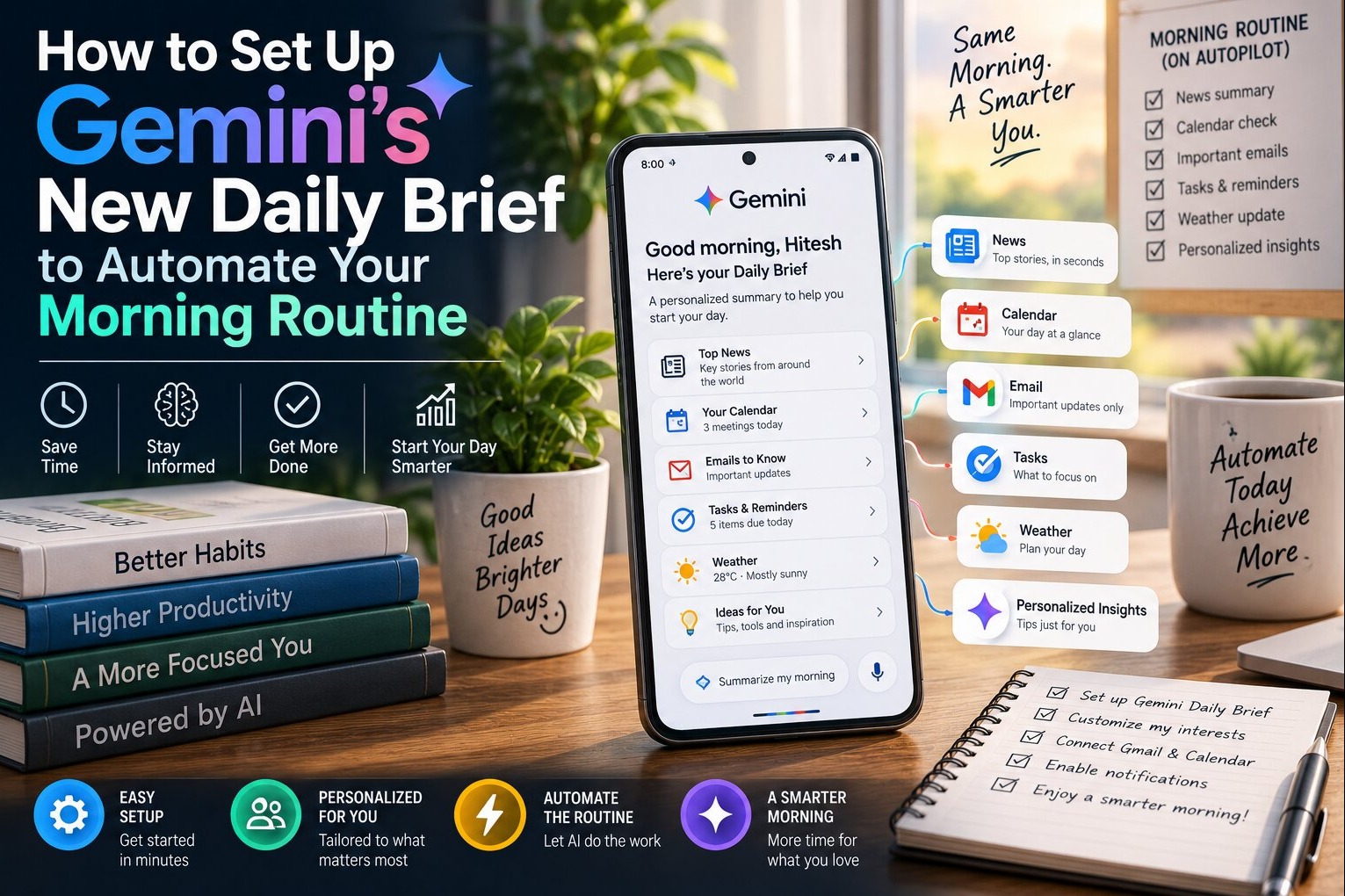
Google started rolling out Gemini Daily Brief in September 2026, a new feature built into the Gemini app that reads your Gmail, Google Calendar, and past Gemini chats and turns them into a single morning summary. It launched first to paying Google AI Plus, Pro, and Ultra subscribers who are 18 or older and located in the United States, with the UK, Canada, Australia, and India named as the next markets in the staged rollout. There's no free-tier version, and Google has not published a firm date for when it lands outside the US.
If you run a business, manage a team, or just drown in email every morning, this is worth setting up the moment it reaches your account, because it isn't another chatbot you have to remember to open. It sits quietly in the background and hands you a prioritized rundown of what actually needs your attention today. Here's exactly how to turn it on, what it costs, what to check in your privacy settings before you connect your inbox, and what to do in the meantime if you're not in one of the eligible countries yet.
What Gemini Daily Brief Actually Does
Daily Brief pulls from three sources: Gmail, Google Calendar, and your Gemini chat history, then organizes them into a "Top of Mind" view that surfaces what it judges most urgent first — an email from a client waiting on a reply, a meeting you haven't prepped for, a bill due that day. It isn't a static digest you read once. Google has described it as an early step toward a more agentic Gemini app, one that checks in on your day proactively instead of waiting for you to type a prompt.
The distinction that matters for a small business owner or freelancer is that this replaces the ten minutes most people spend every morning triaging their inbox and calendar by hand. Instead of scanning forty unread emails to find the three that matter, Daily Brief has already ranked them by the time you open the app. It won't draft replies or take actions on your behalf yet — that's closer to what OpenAI's ChatGPT Work does — but as a planning layer sitting on top of tools you already use daily, it's one of the more immediately practical agentic features either company has shipped this year.
Who Can Use It Right Now
Eligibility is narrower than most Gemini features at launch. You need a paid plan, an adult personal Google account, and a US address on that account. Business/Workspace accounts and under-18 accounts are excluded for now.
| Plan | Monthly Price | Daily Brief Included? | Best For |
|---|---|---|---|
| Free Gemini | $0 | No | Casual chat use only |
| Google AI Plus | $4.99 | Yes (US only at launch) | Solo founders and freelancers wanting the cheapest paid tier |
| Google AI Pro | $19.99 | Yes (US only at launch) | Heavier daily users who also want higher usage limits |
| Google AI Ultra (5x) | $99.99 | Yes (US only at launch) | Power users running multiple AI workflows |
| Google AI Ultra (20x) | $199.99 | Yes (US only at launch) | Teams or individuals with the heaviest usage needs |
Google cut the entry-level AI Plus price from $7.99 to $4.99 earlier this year and doubled its storage allowance to 400 GB, which makes it the cheapest way to test Daily Brief if you're a US-based reader who hasn't subscribed yet. Everyone else — including business/Workspace-only accounts — needs to wait for their tier or region to open up.
How to Turn On Daily Brief, Step by Step
If your account qualifies, the setup takes about five minutes. Google requires you to connect two specific data sources and enable Memory before the toggle even appears, so don't skip a step and then wonder why nothing shows up.
- Confirm your plan and location. Open the Gemini app signed into your personal (not Workspace) account and check that it shows Plus, Pro, or Ultra, and that your account's country is set to the US.
- Go to Settings & help, then Personal Intelligence. This is the hub for every feature that reads your personal data, not just Daily Brief.
- Connect Gmail and Google Calendar under Connected Apps. You'll get a permissions prompt for each one — Daily Brief can't generate anything without both connected.
- Turn on Memory. This is a separate toggle from the connected apps and is required for the feature to appear at all.
- Flip on the Daily Brief toggle. Your first brief won't appear instantly — Google generates it overnight, so check back the next morning.
- Open the app each morning to review Top of Mind. Treat the first week as a calibration period; the ranking improves as it learns which emails and meetings you actually act on.
What to Do If You're Outside the US
If you're reading this from the UK, Canada, Australia, New Zealand, or Western Europe, don't spend time hunting for a workaround — there isn't a reliable one, and changing your account's country setting to fake US eligibility can trip Google's account-verification systems and cause other problems with your subscription. The more useful move is to prepare now so you're ready the moment it lands in your market.
Subscribe to whichever Google AI tier fits your budget today rather than waiting, since your existing plan should carry over eligibility once the feature expands to your country. Clean up your Gmail labels and make sure your Google Calendar events have accurate titles and times — Daily Brief's usefulness depends entirely on the quality of the data it's reading, so a calendar full of vague "Meeting" entries will produce a much weaker summary than one with real context. In the meantime, Gemini's existing chat-based prompts can approximate a manual version: each morning, ask it to summarize your unread Gmail and today's calendar in one message, which gets you a rough version of the same triage until the automated feature arrives.
Privacy Controls to Check Before You Connect Your Inbox
Daily Brief runs on always-on access to your inbox and calendar, and privacy researchers have flagged that Google's broader push toward default-on Gemini access inside Gmail, Chat, and Meet has already drawn a lawsuit alleging the opt-out controls were buried. Before you connect anything, it's worth understanding exactly what you're granting and how to walk it back if you change your mind.
- There is no single switch that both disables Daily Brief and deletes what it has already read — turning the feature off stops new summaries but doesn't erase prior activity.
- You can disconnect Gmail or Calendar individually under Personal Intelligence → Connected Apps without shutting off the entire feature, useful if you only want it reading one source.
- Memory can be turned off separately from the connected apps, which limits how much Gemini retains about your patterns over time.
- If you share a Google account with a business partner or use the same account for client email, think carefully before connecting Gmail — Daily Brief will surface content from every thread, including anything you'd rather keep out of an AI-generated summary.
- Review what data Daily Brief has already surfaced weekly for the first month, since Top of Mind's judgment of "important" will occasionally flag something you didn't intend to feed into an AI system, like financial or medical correspondence.
How to Get the Most Out of It Once It's On
The feature works best when you treat it as a filter, not a replacement for actually reading your email. Check Top of Mind first thing, but don't let it fully replace a scan of your actual inbox for the first few weeks — it's a new system and it will occasionally miss something, or rank a low-priority newsletter above a client email because of confusing subject-line phrasing.
Keep your calendar as your single source of truth. If you're still scheduling meetings by email thread instead of calendar invite, Daily Brief has less to work with and its ranking gets noticeably worse. Business owners who use Gmail labels to separate clients, vendors, and internal team communication will also get a more useful brief, since the underlying model appears to weight labeled, organized threads more reliably than a flat, unsorted inbox.
If you're on Pro or Ultra rather than Plus, pair Daily Brief with Gemini's deeper research and drafting features once your morning priorities are set — use the brief to decide what to work on first, then hand the actual task to Gemini's chat or Workspace-integrated tools rather than doing both steps manually.
Common Mistakes to Avoid
- Assuming a business or Workspace account qualifies — at launch, Daily Brief is personal-account-only, even if your organization pays for Google AI Pro or Ultra seats.
- Connecting Gmail and Calendar and then never checking Personal Intelligence settings again — Google has changed default-on behavior for Gemini features before, so revisit these settings after any major Gemini app update.
- Expecting Daily Brief to take action on your behalf — it summarizes and prioritizes, it doesn't draft replies, send emails, or reschedule meetings the way a full agentic assistant would.
- Ignoring the overnight generation delay — toggling the feature on and expecting an immediate brief is the most common setup confusion reported by early users.